Nektony Duplicate File Finder Pro review
Nektony Duplicate File Finder is built for a familiar Mac problem: copies of the same photos, music, videos and project files spread across an internal drive, external disks and network storage. Duplicate files do not automatically make a Mac slower, but they can consume expensive storage and make backups harder to manage. The important question is therefore not merely how many files an app finds, but how safely it helps you decide what can go.
What Duplicate File Finder is today
Nektony offers a free edition and a Pro edition. The free version can scan, review and remove exact duplicates. Pro adds the tools that matter for larger or less orderly collections: Smart Select, selection by folder, similar-photo analysis, duplicate and similar-folder handling, and folder merging. Exact duplicates are checked byte for byte, according to Nektony, rather than being judged only by their name or size.
The current release is version 9.1 from May 2026 and requires macOS 11 or later. The application can work with a Mac’s internal storage, external drives, mounted NAS locations and the Photos library. Cloud files must first be downloaded locally; an online placeholder cannot be compared if its data is not actually present on the Mac.
Installation and Mac permissions
Our original installation was straightforward: open the downloaded disk image, drag the app to Applications and enter the licence details for Pro. Current macOS versions may then ask for access to folders, removable volumes or the Photos library. Those permissions are expected for a utility that must read file contents, but grant only the locations you intend to scan.
The app is notarised and sandboxed. That is reassuring, although it does not remove the need to inspect deletion choices. A duplicate finder can identify matching data; it cannot always know which copy fits your workflow, folder structure or backup policy.
Our original test setup
We tested Duplicate File Finder on the kind of library that makes these utilities useful. Years of photo editing, music projects and experimental versions had produced many ‘Folders in Progress’. Some lived locally, while others had been copied to external and NAS storage. The selected locations contained roughly 1.5 million files.
This was a real working archive, not a small synthetic test folder. That makes the experience representative of a demanding home or creative setup, but it also limits the conclusions. We could not manually verify every reported pair. The numbers below show how the applications behaved in that environment; they are not laboratory proof that one matching engine is universally more accurate.
Interface and scan configuration
The opening screen is deliberately minimal. We originally found it almost too simple, especially beside more polished consumer utilities. In practice, the restrained design keeps the main task clear: add a folder or volume, choose what should be examined and start scanning.
The more important controls sit in the preferences. The Skip List excludes folders or files that should never be included. This is useful for system-related locations, active project caches and carefully managed archives. Auto Select and the newer Smart Select rules can choose copies based on location, name, creation date or other criteria. These rules save time, but they deserve a trial run before being trusted with a large removal.
Results from the 1.5-million-file test
Scanning our selected storage took about four hours. That sounds long until the scale and storage mix are considered: around 1.5 million files, including network-connected locations, had to be read and compared. A smaller local SSD scan should be considerably quicker. NAS speed, file size, connection quality and the number of excluded folders all influence the result.
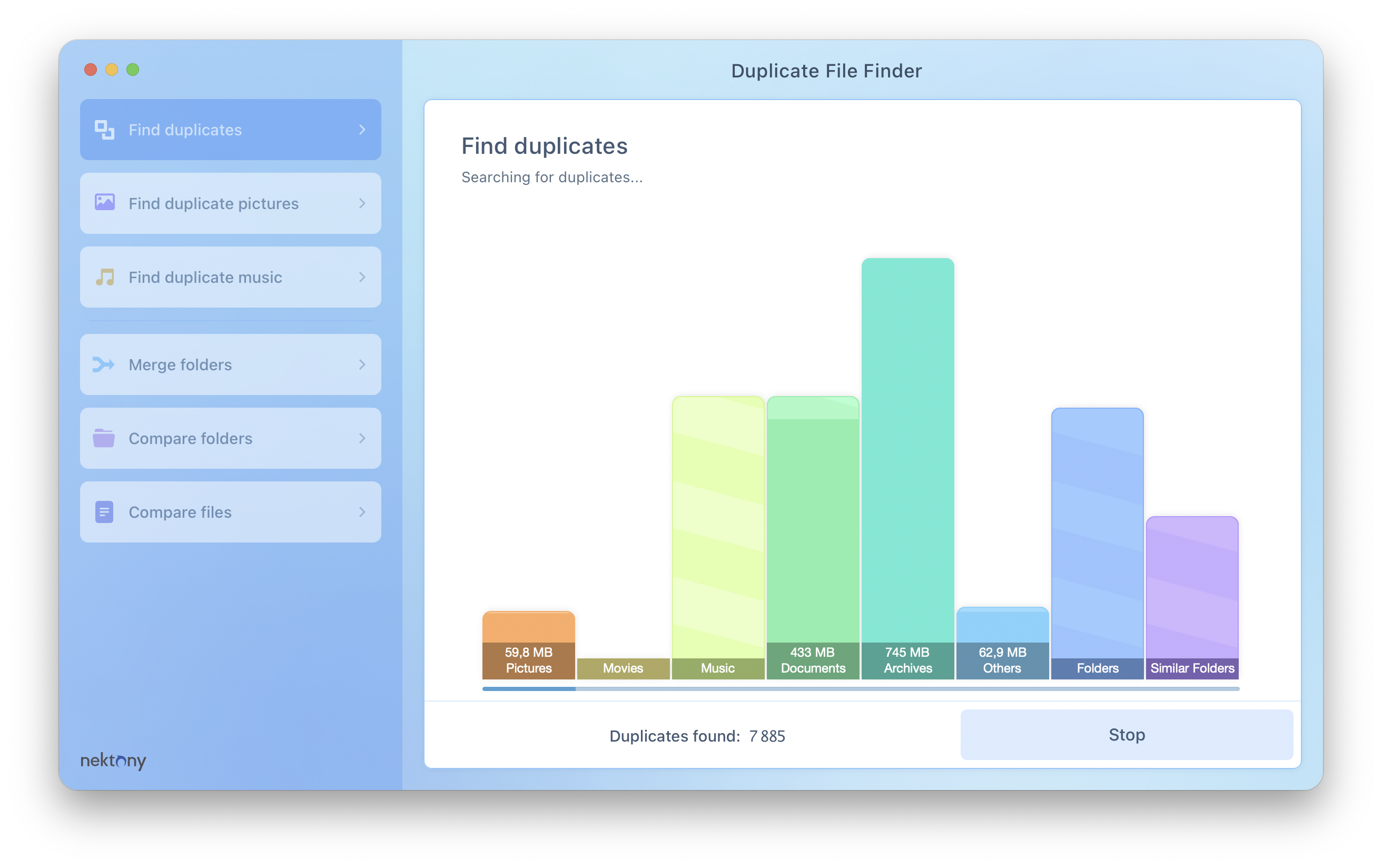
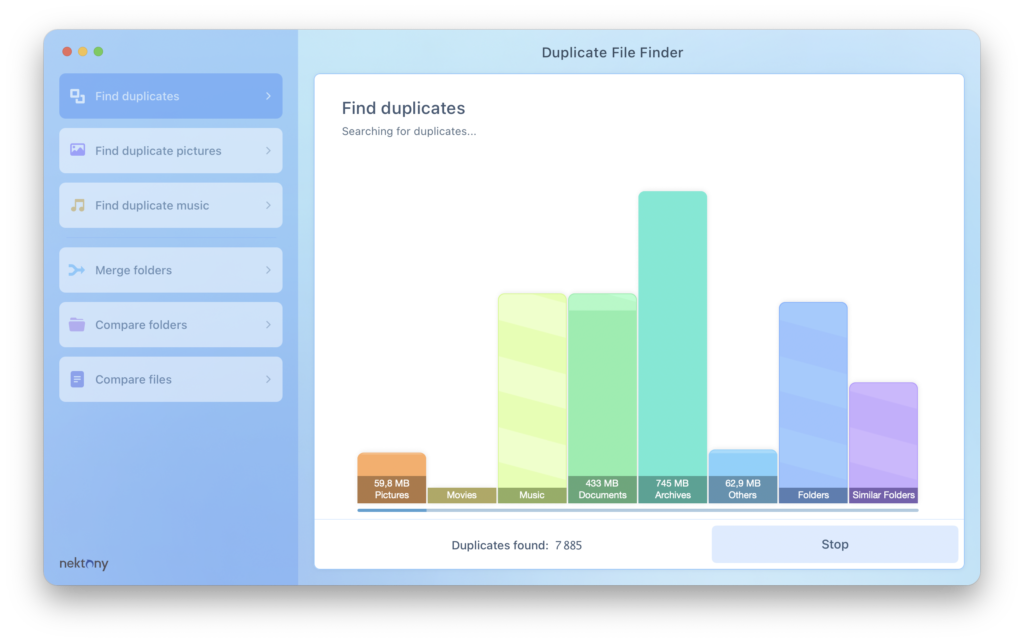
Progress was easy to follow. Animated columns showed the scanned data and file categories, while the progress indicator made it clear that the app was still working. When the scan finished, results were grouped by file type with counts and reclaimable space. This was more useful than a single large total because we could begin with familiar media before touching less obvious documents or archives.
In the original comparison, Duplicate File Finder completed its work roughly 40 minutes before Gemini 2. It also reported about 42,000 more files and approximately 16 GB more duplicate data. That was a striking difference, but it needs context. Version changes, scan scope, similarity thresholds and the way each app counts file groups can all affect the totals. More results are useful only when they are correct and safely reviewed.
Exact duplicates versus similar files
The distinction is essential. An exact duplicate is another copy of the same file content. Similar photos are different files that an algorithm considers visually related: burst shots, altered crops, resized exports or nearly identical exposures. Removing an exact extra copy can be a technical decision. Choosing between similar photos is an editorial decision.
Nektony’s category view and preview make that difference easier to manage. For exact duplicates, check paths and confirm that at least one wanted copy remains. For similar images, inspect sharpness, expression, edits and resolution yourself. Automatic selection can reduce repetitive work, but it should not decide which family photo or finished creative export has value.
Reviewing and removing safely
The review stage is where Duplicate File Finder earns its place. Files can be examined by category and location, previewed and then sent to the Trash. We recommend starting with a small, obvious group rather than selecting everything found in a multi-terabyte library.
- Use the Skip List to protect system, application and irreplaceable archive folders.
- Confirm that every duplicate group retains at least one copy in the correct location.
- Do not empty the Trash immediately; use the Mac normally and check important projects first.
- Keep a separate backup. The Trash is a temporary safety net, not a backup strategy.
- Be especially cautious with NAS and RAID storage, where deletion and Trash behaviour can differ from a local Mac volume.
Nektony includes removal history while the removed material remains available in the Trash. That can help reverse a mistake, but recovery becomes less certain after the Trash is emptied or when a remote volume bypasses it.
Photos, NAS, external and cloud storage
Support for several storage types is one of the app’s strengths. External disks and mounted NAS folders can be added alongside internal locations, which suited our scattered collection. The Photos library can also be scanned, with a separate workflow for exact duplicates and similar images.
Cloud storage requires more thought. Dropbox, OneDrive and iCloud Drive may show files that are only placeholders. Duplicate File Finder can analyse them only after their full contents are downloaded. Pulling a large cloud archive onto a Mac merely to scan it may temporarily use more local space than expected, so select folders carefully.
Pro tools: Smart Select and folder merging
Smart Select is the biggest reason to consider Pro. It can establish rules for which copy to retain or remove, and selection by folder is valuable when one directory is known to be the master archive. The rules turn thousands of repeated clicks into a manageable review. They also increase the consequences of a poor rule, so inspect several groups before applying a decision widely.
Folder tools address a mess that simple file matching does not. Duplicate folders contain the same material. Similar folders combine overlapping and unique files. Pro can compare and merge these structures, helping consolidate collections without blindly discarding the files that exist in only one location. For our old ‘Folders in Progress’, this is more valuable than a raw duplicate counter.
How it compares with Gemini 2
Gemini 2 remains the friendlier choice for someone who wants a highly polished, guided interface and fewer decisions. Its Smart Selection approach and menu-bar monitoring feel approachable. Duplicate File Finder exposes more control over locations, selection rules and folder structures. Its free edition is also unusually useful because it can remove exact duplicates rather than only demonstrate what was found.
Our historical test favoured Nektony for speed and the amount detected, but that result should not be treated as a permanent benchmark. For a beginner cleaning one Mac, Gemini’s presentation may justify its simplicity. For a user managing external drives, NAS shares or complicated project folders, Nektony’s granular tools are likely the better fit.
Free versus Pro and current pricing
The free edition is enough to test the interface and perform genuine exact-duplicate cleanup. That makes it easy to see whether the scanner suits your storage before paying. Pro is aimed at recurring cleanup and complex collections, adding Smart Select, folder merging, similar folders and similar-photo features.
At the time of this update, Nektony lists Pro at $7.99 per month, $14.99 per year or $34.99 as a one-time purchase. Prices and promotions can change, so check the developer’s purchase page before buying. The annual plan is inexpensive, while the one-time option makes sense if this will remain part of a long-term archive workflow.
Pros
- The free version scans, reviews and removes exact duplicates.
- Byte-for-byte checking for exact duplicate files.
- Works across internal drives, external storage, NAS locations and Photos.
- Useful previews, categories, Skip List and selection controls.
- Pro’s folder comparison and merging go beyond basic duplicate deletion.
- Strong performance in our original 1.5-million-file test.
Cons
- The minimal interface may feel plain beside Gemini 2.
- Large NAS scans can take hours.
- Cloud-only files must be downloaded before they can be analysed.
- Similar-photo and automated selections still require careful human review.
- Our large comparative test reflects an earlier version, not a fresh benchmark of release 9.1.
Verdict
Nektony Duplicate File Finder is more than a quick storage cleaner. Its real strength is control: choosing exactly where to scan, protecting locations, reviewing file groups and consolidating overlapping folders. The original test showed that it could handle an unusually large collection and finish ahead of Gemini 2 while reporting substantially more potential duplicates.
That power should be used deliberately. Start with exact duplicates, review paths, leave the Trash untouched and treat similar photos as choices rather than errors. With those habits, the free edition is a capable first step and Pro becomes a worthwhile tool for photographers, musicians and anyone maintaining several drives or a NAS. Users who prefer the most polished and guided experience may still favour Gemini 2, but for complex storage, Nektony offers the deeper toolkit.
Current product details checked against Nektony’s release information, FAQ and feature and pricing comparison. The historical performance figures come from MacAppCritic’s original hands-on test.
0 Comments