Carbon Copy Cloner 7 review
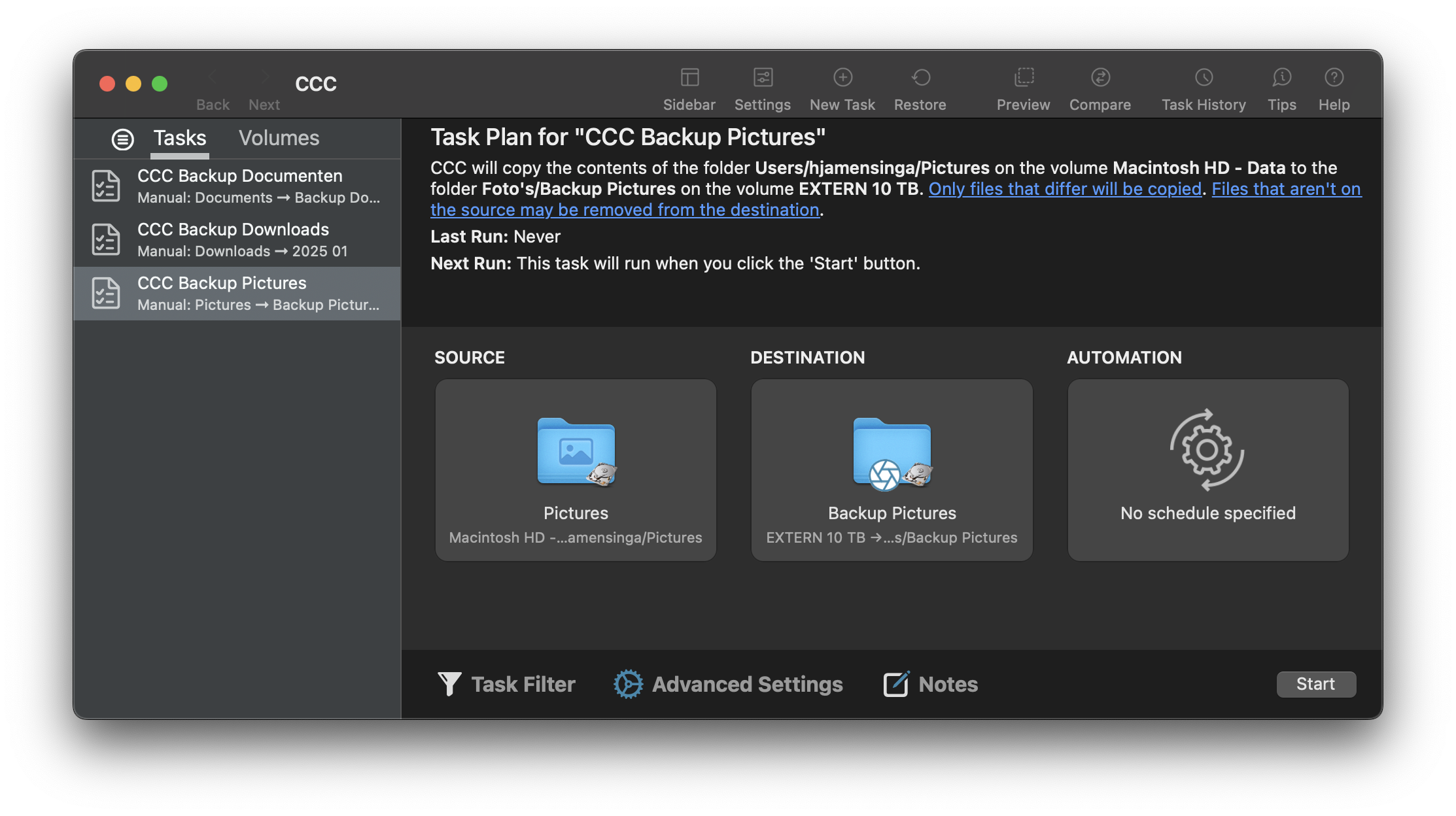
Carbon Copy Cloner 7 in everyday use
Carbon Copy Cloner’s strongest appeal is the balance between a straightforward backup task and detailed control over how that task runs. In my original review, I liked the clean presentation and the way source, destination and scheduling were brought together. The application felt approachable without hiding the options that more demanding backup arrangements need.
That matters because a backup utility is something you need to understand when things go wrong. Knowing which files were copied, where older versions live and how to restore them is more valuable than simply seeing a reassuring completion message. This review looks at that workflow, the controls available and the limitations that affect recovery.
Interface and setting up a backup
The main window gives each backup task a clear identity. My earlier impression was that the arrangement made creating a task and checking a previous run easy to follow. Selecting a source and destination is the central decision; the surrounding settings determine which files are included and when the task should run.
For a first backup, choose the data you want to protect, select a dedicated destination and review the settings before starting. CCC 7’s Backup Volume Setup Assistant can handle destination formatting, snapshot support and optional encryption. Formatting is a deliberate setup step, so check the selected disk and preserve any existing files before proceeding. Bombich’s first-backup guide.
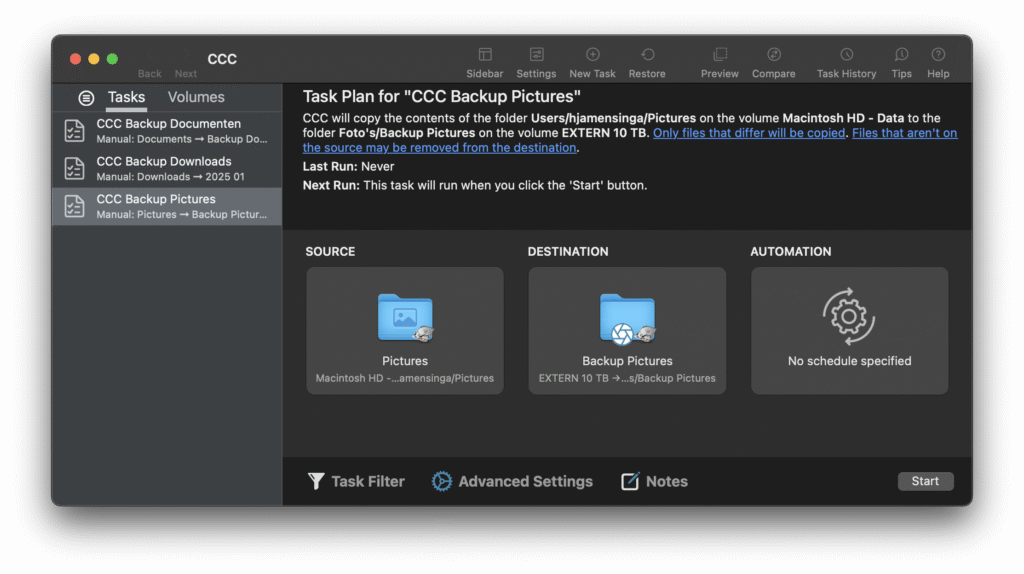
Screenshot from the original CCC 7 review; later releases may differ.
The original review described this as a guided, wizard-like process. What I appreciated was not the absence of options, but being able to make the basic choices first. More advanced settings are useful once you understand what the task is intended to protect.
Running the task and checking the result
After the first run, inspect the task result and review any reported errors or exclusions. A completed copy and a usable recovery are related, but they are not the same test. Open a few representative files from the destination and practise restoring something unimportant before depending on the arrangement.
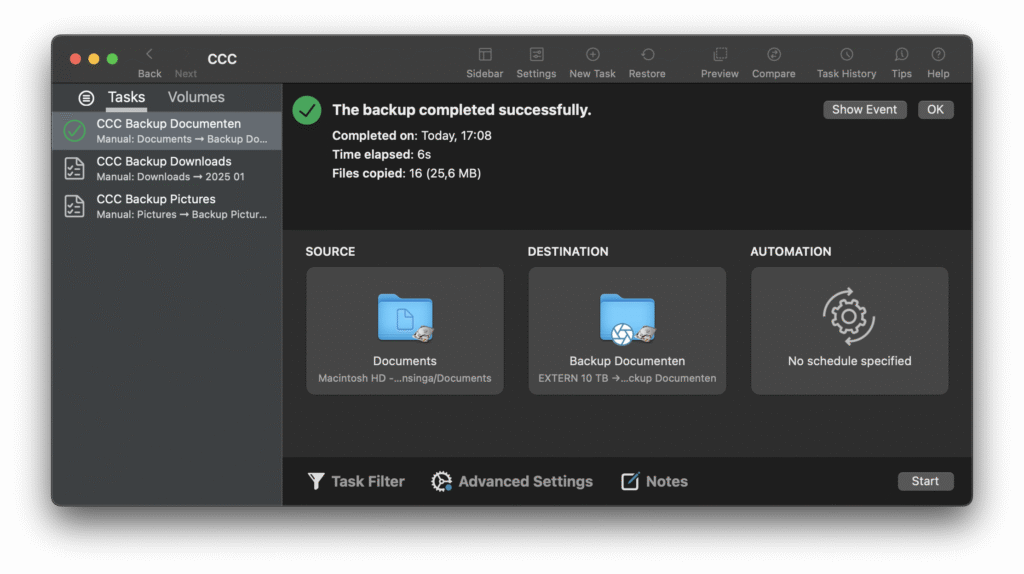
Screenshot from the original CCC 7 review; later releases may differ.
The screenshot above is retained from the original backup session. It illustrates the application after a backup; it is not evidence that every possible restore scenario was tested. The original article did not document a full disk-failure recovery exercise.
Incremental backups and task controls
The first backup establishes the destination copy. Subsequent runs can update changed items instead of copying everything again. This is the practical benefit of an incremental workflow: the amount of new work usually depends on what changed, rather than the total size of the source alone.
It is important to distinguish this from a sector-for-sector disk image. CCC’s ordinary file-copying workflow should not be described as block-level cloning of the entire drive. Likewise, an incremental backup does not promise that every large changed file will be transferred only as tiny changed blocks.
CCC 7 also provides Quick Update for applicable sources. Bombich’s setup guide describes enabling it through the setup assistant to improve subsequent backup efficiency. That is the feature name to look for, rather than the original article’s loose reference to “Smart Updates”. Whether the saving is noticeable depends on the source, destination and changes between runs.
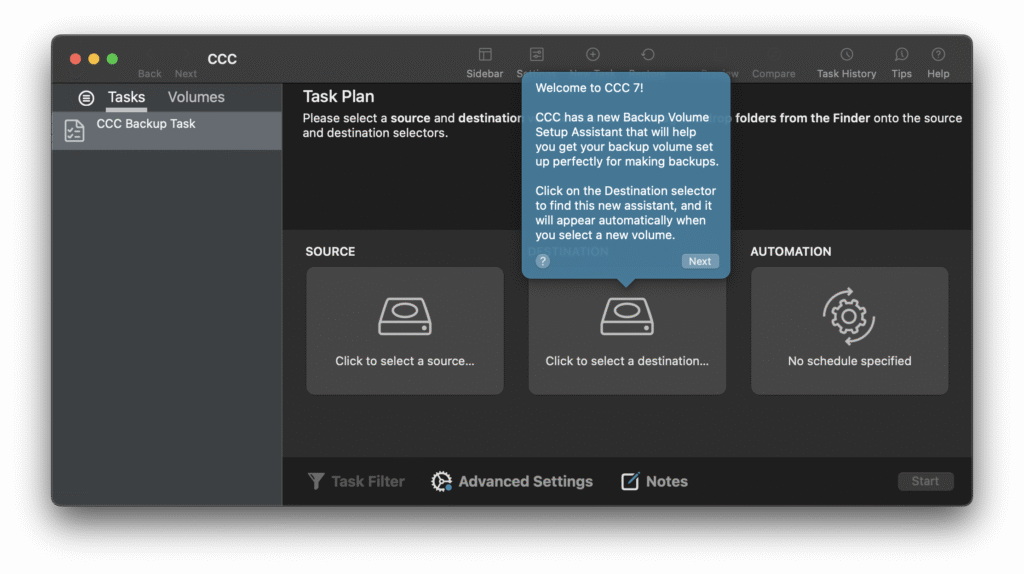
Screenshot from the original CCC 7 review; later releases may differ.
Scheduling, exclusions and automation
Flexible scheduling was a major positive in the original review. A backup that depends on remembering to press Start is easy to postpone. A regular task, or one associated with connecting a backup disk, fits more naturally into a working day.
The original article also highlighted file and folder exclusions, task histories, notifications and pre- or post-task scripts. These controls matter for different reasons: exclusions define scope, history helps diagnose a problem, and scripts can fit a task into a larger workflow. Advanced automation is useful only when the basic backup already behaves as intended.
My practical advice is to give tasks descriptive names and keep their purpose specific. A task for working documents and a task for a large media archive may need different destinations or schedules. Review exclusions carefully: a successful task cannot protect a folder that has been deliberately left out.
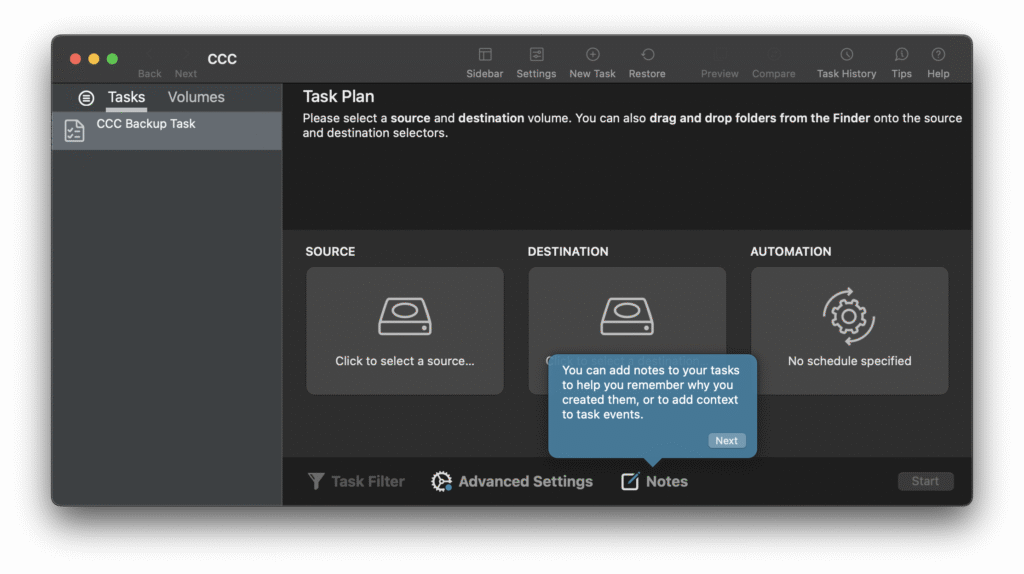
Screenshot from the original CCC 7 review; later releases may differ.
APFS snapshots and backup history
A current copy helps recover the latest files, but it may already contain a mistake you want to undo. APFS backup snapshots provide earlier points in time, making it possible to recover a previous version rather than only the most recent state.
Snapshots share unchanged storage data and retain data required by earlier states. They are not independent duplicate drives. Their storage requirements grow as files change, and retention has to fit the available space. Losing the physical destination can also mean losing its snapshots, so historical versions on one disk do not replace a separate backup.
The distinction between Backup snapshots and SafetyNet snapshots matters. Backup snapshots preserve the source’s backed-up state. SafetyNet protects destination content before a task changes it, for example after choosing an inappropriate destination. It is a temporary safeguard, not the primary mechanism for retaining backup history. SafetyNet and Backup snapshots explained.
Bombich now recommends a destination dedicated to the backup task and describes SafetyNet as largely obsolete with CCC 7’s setup assistant. Older descriptions of a dated SafetyNet folder should not be applied indiscriminately to snapshot-enabled APFS backups. Current SafetyNet guidance.
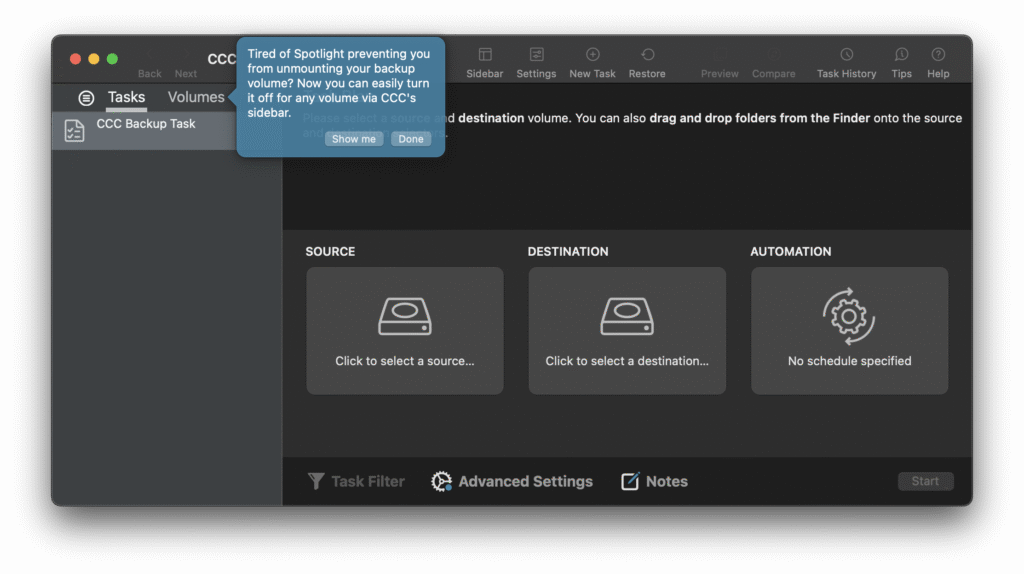
Screenshot from the original CCC 7 review; later releases may differ.
Restoring files and recovering a Mac
For a routine recovery, identify the required file and point in time, inspect the backup or snapshot, and restore to a separate location when you want to compare it with your current version. Open the recovered file before replacing the working copy. This small rehearsal is a practical way to learn the recovery process without turning a real emergency into your first attempt.
Recovering a whole Mac needs a different explanation. Modern macOS system copies are not universally bootable substitutes for a failed internal drive. Bombich describes its legacy bootable-copy facility as best effort and recommends installing macOS and migrating data from the CCC backup for supported recovery. Intel and Apple Silicon machines should not be treated as interchangeable boot environments. Bombich’s bootable-copy guidance.
This limitation changes the reason to buy CCC. Its useful backup controls remain, but “bootable backup” should not be read as a guarantee that any Mac can continue immediately after any drive failure. Decide how you would obtain a working system as well as how you would recover your files.
Encryption, verification and error reporting
CCC 7’s destination setup can enable encryption. This protects data on the backup volume when it is locked; it is not a reason to assume that encryption of the source automatically encrypts every destination. Keep the recovery password accessible independently of the Mac you are backing up. CCC 7 setup and encryption features.
The original review praised detailed reporting, which is useful when a task encounters permissions, unavailable storage or copying errors. However, no completion indicator guarantees that a drive has no hidden hardware faults. Reviewing errors, checking representative recovered files and keeping more than one copy serve different purposes.
The earlier suggestion that CCC can establish in advance that both disks are completely healthy went too far. A backup application can report the problems it detects; it cannot promise that future reads, hardware or every recovery attempt will succeed.
Network destinations and cloud-only files
A network destination can make backups convenient when a local drive is not always attached. Connection speed, availability and the destination’s behaviour then become part of the task. The original review did not document a NAS model or a repeatable network test, so it does not establish performance on a particular device.
Cloud-only source files are a separate issue. Bombich describes downloading them temporarily so their contents can be included in a local backup. That is different from treating CCC as a direct Google Drive, Dropbox or off-site cloud-backup service. Choose the destination workflow on its own merits and check that the files you need are actually present in the resulting backup. CCC’s cloud-file backup overview.
Performance: what the original test established
My original impression of everyday performance was favourable, especially once the initial copy had completed. However, there are no recorded file counts, transfer sizes, drive models or timings to support a numerical comparison. “Near-instant” incremental backups and “no slowdown” are therefore not reliable promises for another Mac.
To evaluate CCC for your own work, compare an initial backup with a subsequent run after realistic changes. Note how long each takes, whether normal work is affected and whether a representative restore succeeds. A small document collection and a library of large changing files place very different demands on storage.
Pros and cons
| What I liked | What needs consideration |
|---|---|
| A clear source-and-destination workflow with detailed task controls. | More decisions to understand than a basic automatic backup setup. |
| Incremental updates and flexible scheduling reduce repetitive manual work. | Speed depends on the files, storage and connection; it is not universally instantaneous. |
| Snapshot history offers a route back to earlier file versions. | Retention consumes space and depends on the destination remaining available. |
| Task reporting helps investigate incomplete or failed backups. | Reports complement restore testing; they do not guarantee hardware health. |
| Useful control over a dedicated backup and recovery arrangement. | Modern bootability limitations rule out a universal instant-recovery promise. |
Value and verdict
My positive assessment centres on control and clarity. CCC is attractive when you want to choose the scope of each task, keep history and understand the destination copy. The interface was a strong part of my original experience, and the additional controls give the software a purpose beyond simply starting a backup.
If your existing backup process already meets your needs and you have verified recovery, another application may add little. If you need more deliberate task management, CCC is worth evaluating with your own files. Compare alternatives by the recovery you need, rather than an unexplained star score or a yes/no bootability box.
The current price, licence terms, trial and system compatibility should be checked for the version you intend to install. The original comparison table mixed historical prices and unqualified feature claims; the supported verdict is that CCC offers a useful balance of accessibility and control, not that it has proved universally faster or more reliable than every competitor.
Download and trial information · Current CCC 7 release notes
0 Comments