Luminar Neo review
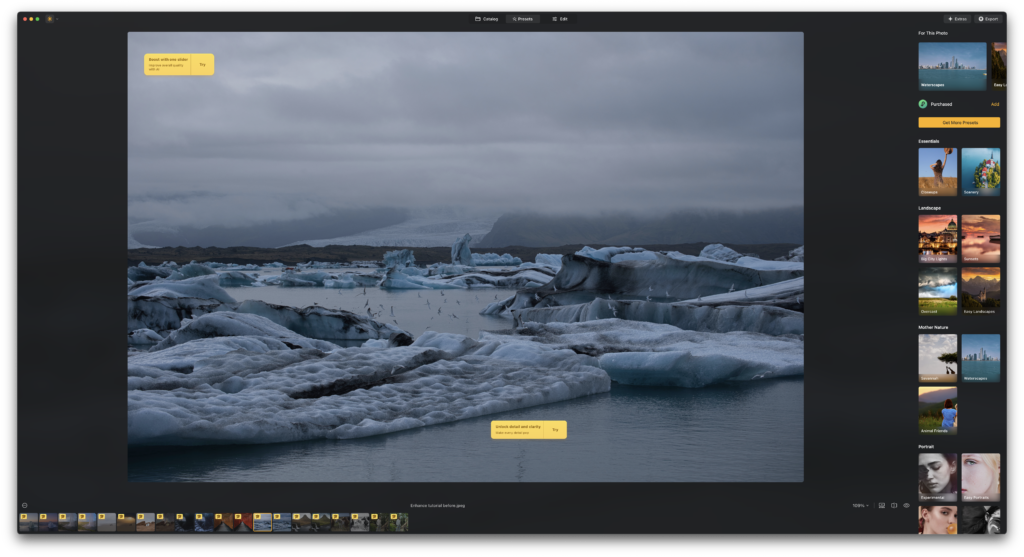
The Luminar workspace keeps presets, tools and previous edits within reach.
Why I enjoyed editing with Luminar Neo
Luminar Neo appealed to me because it made experimenting with a photograph feel accessible. I could choose a preset, explore a different treatment and then refine individual adjustments without constructing every effect manually. The pleasure was in finding a look I might otherwise never have tried. That is a more useful reason to consider this editor than simply counting how many tools carry an AI label.
My earlier testing covered the interface, creative adjustments, background blur and several extensions. Noise reduction and focus stacking impressed me; sharpening was less convincing against the Topaz version I used at the time. Those experiences form the basis of this review. The technical sections below explain what each part contributes to the workflow and where its limits matter.
Interface, catalogue and presets
In the version I tested, the left sidebar gave me access to selected photo folders. I could open an image at a larger size, choose Edit and work through the controls on the right. Presets provided a quick starting point; the editing tools then allowed more individual control. I found the arrangement inviting and reasonably quick to learn. More demanding work with masks and layers still took practice.
Current interface: Skylum’s release notes now list Luminar 1.28.0, released 5 August 2026. Catalogue and editing functions share a workspace, with Presets, Tools and Edit together in the right panel. Extra tools are also accessible from that sidebar. The older screenshot above therefore explains my original experience rather than the exact position of controls in the current release. Skylum’s release notes.
A preset should be judged against the photograph, not accepted simply because its preview looks attractive. My preference for this workflow comes from the freedom to explore different treatments. It does not mean every picture benefits from a dramatic look, or that one click removes the need for judgement.
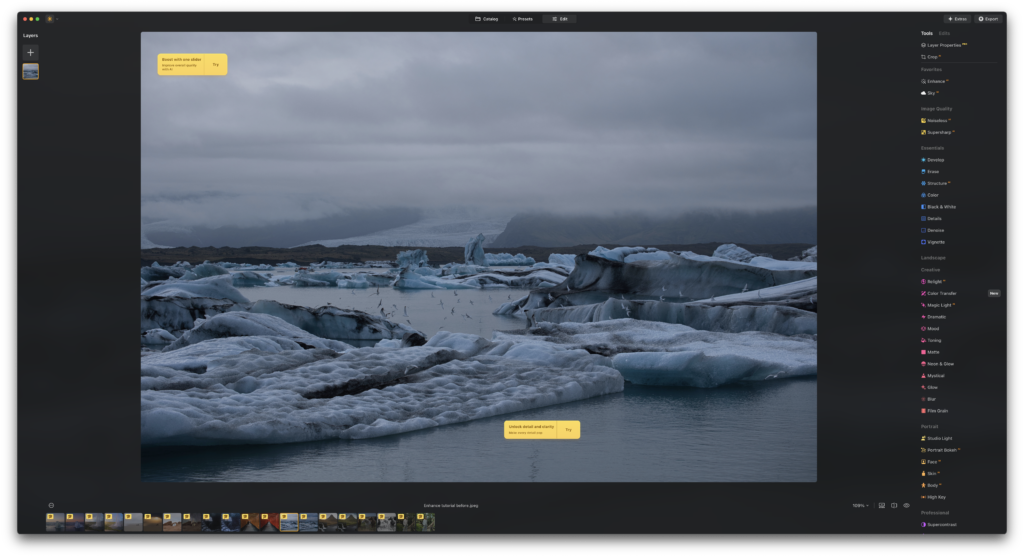
Structure AI: detail and local contrast
Structure AI was one of my favourite tools. It helped give otherwise flat-looking photographs more presence, particularly when texture was an important part of the scene. This is a useful distinction from changing exposure: increasing the visibility of detail can change the character of a picture even when its overall brightness is already appropriate.
The main controls are Amount and Boost. Amount changes the strength of the detail treatment; negative values soften detail. Boost emphasises smaller details more aggressively. Skylum describes the tool as content-aware, with different treatment of people and surrounding objects. That does not remove the need to inspect the result. Structure AI controls.
For practical evaluation, examine fine textures and high-contrast edges at full size, then return to the whole image. A treatment that looks striking when zoomed out may feel excessive in a large print. Treat Structure as a creative adjustment, not proof that lost focus or missing detail has been recovered.
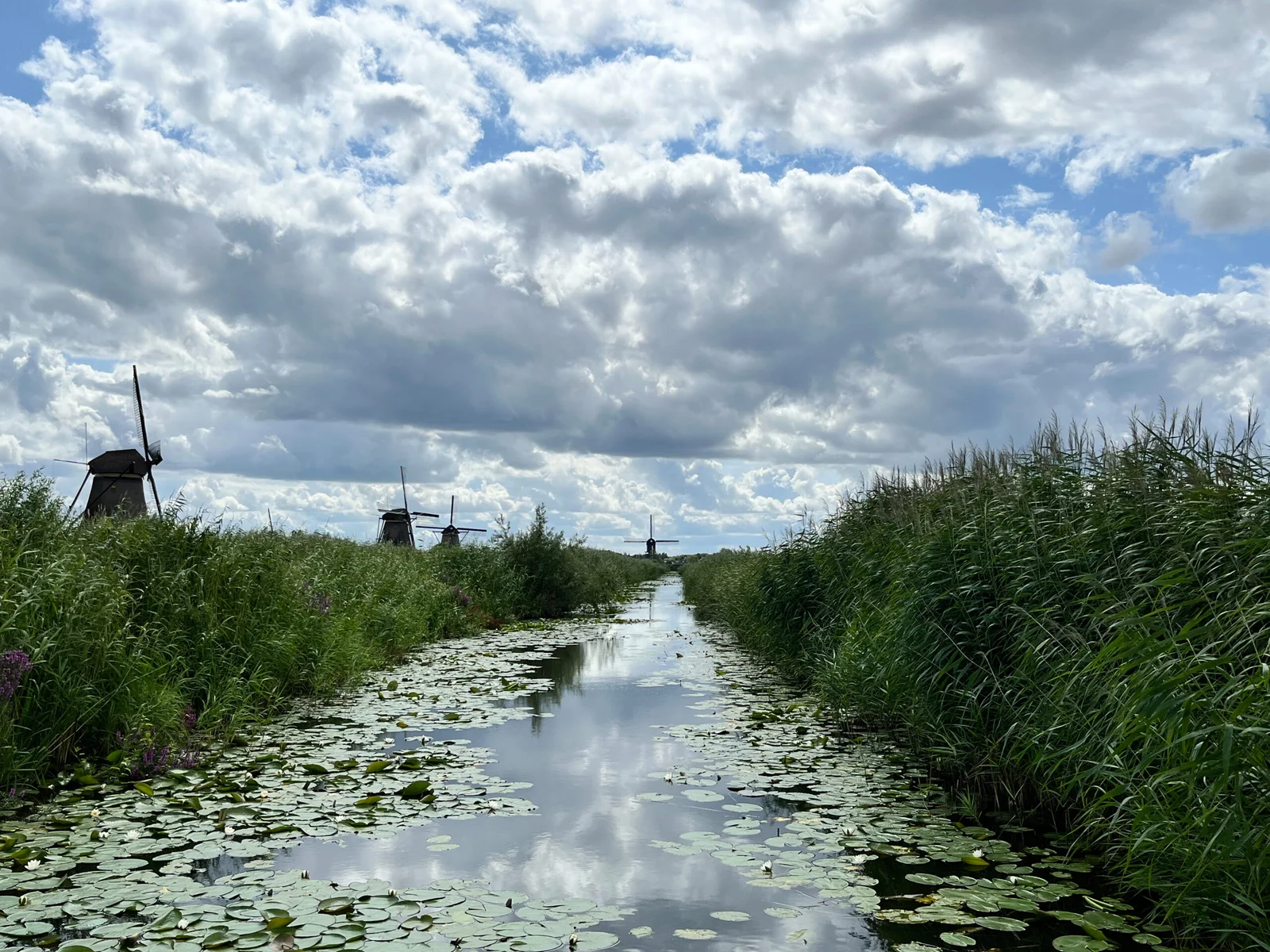

Original before-and-after photographs accompanying the detail-editing section. Select either photograph to view it at full size.
Sky replacement: changing the atmosphere
Sky replacement was another highlight of my earlier use. I described a photograph taken on a mountain in rainy weather, with muted colours and a plain sky. Trying a different sky changed its atmosphere considerably. Luminar made that sort of experiment easy enough that I was willing to explore treatments I would otherwise have left alone.
Sky AI and Structure AI serve different purposes: Structure changes the rendering of detail, while Sky AI replaces an identified sky region. Skylum documents both built-in sky choices and importing your own sky images. Its sky tool also handles reflections in detected water. Those capabilities help build a composite, but they do not guarantee that every replacement will look convincing. Sky AI documentation.
Match the direction and character of the light to the foreground. Pay attention to the horizon, fine branches and reflections, and judge whether the sky belongs in the scene. For creative photography this can be an enjoyable transformation. For documentary work, replacing the sky changes what the photograph records and should be disclosed.
Portrait tools and background blur
The original review included a statue example to illustrate changing the apparent depth of field. I adjusted which areas remained prominent and which became blurred, using the available controls to vary the strength. I liked the effect, although it was a demonstration rather than a controlled comparison with an optical lens.
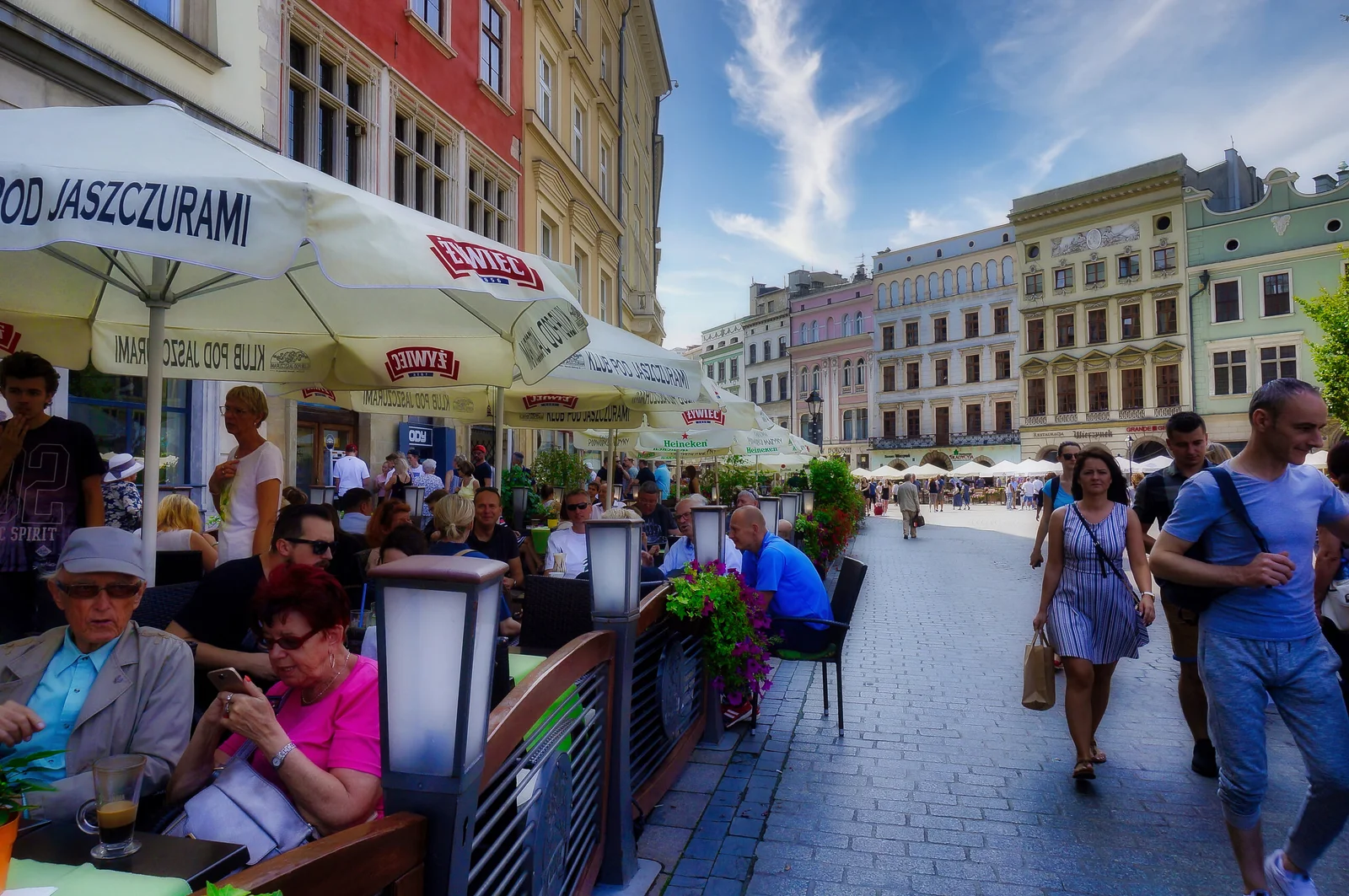
Original before-and-after photographs accompanying the background-blur example. Select either photograph to view it at full size.
This distinction matters technically. Software blur simulates separation after the photograph has been taken; it cannot change the focus captured by the camera. Judge the transition around the subject, not just the amount of blur in the background. A convincing result needs a believable relationship between foreground, subject and distance.
Face AI and Skin AI address portrait adjustments rather than background depth. Skylum’s 1.27.0 notes describe revised skin controls and Bokeh AI. These are subsequent product changes, not features I have newly tested for this article. The older promise of a fixed five-minute retouch instead of forty minutes was not supported by a recorded comparison and is not used as a performance claim here. Portrait-tool updates.
Layers, masks and non-destructive editing
Luminar’s creative appeal is not limited to presets. Layers allow multiple images to contribute to a composition, while masks restrict where a layer or adjustment is visible. Skylum documents repeated applications of tools with separate masks and the use of RAW images as layers. The ability to revisit adjustments is valuable when a creative experiment goes too far. Layers and layer masks.
These controls also explain the learning curve. A broad adjustment can be easy to apply, but a clean blend around a complicated subject requires attention. For example, enhancing texture across a scene and keeping the treatment away from a face are different editing decisions. Automation helps establish a starting point; selective refinement is still part of the work.
Extensions: what I tested and what they do
My earlier review discussed the following additional tools. Availability depends on the licence and offer, so this list describes their roles rather than promising that every purchase includes everything. The comparisons with Topaz refer to the versions used during the original review, not a current benchmark.
| Tool | Purpose | Original assessment or limitation |
|---|---|---|
| Noiseless AI | Noise reduction. | In my earlier comparison it performed well against Topaz DeNoise. I found the results comparable on the photographs I used; no measured test set was recorded. |
| Focus Stacking | Combines photographs focused at different distances to extend apparent depth of field. | I tested this and was pleased with the result. It is relevant to close-up and landscape work, but requires suitable source photographs. |
| Supersharp AI | Sharpening and detail treatment. | In the earlier test I preferred Topaz’s sharpening. That observation should not be extended to the current versions without retesting. |
| Upscale AI | Enlarges a small or cropped image. | Enlargement is useful for output size, but should not be confused with a new high-resolution capture. |
| Background Removal AI | Separates a subject from its background. | Inspect the outline and refine difficult edges before using the subject in a composite. |
| HDR Merge | Combines differently exposed source photographs. | Useful when one exposure cannot hold the desired scene detail; the original article did not provide a measured comparison. |
| Magic Light AI | Stylises light sources with glow or starburst effects. | A creative effect whose suitability depends on the photograph. |
| Panorama Stitching | Combines overlapping views into a wider composition. | The original review described its panorama workflow, but did not document a separate accuracy test. |
The strongest part of my extension experience was having these tasks available within the same editing environment. The trade-off is that convenience does not establish that each specialised tool is the strongest option in its category. My different reactions to noise reduction and sharpening are a good example.
Batch editing: useful, with specific limits
Luminar supports batch editing through Sync Adjustments. Edit a source photograph, make it active, select the additional photographs and choose Adjustments → Sync Adjustments from the context menu. The documented Mac shortcut is Shift–Command–S. Multiple selected photographs can then be exported together.
There are limits: Skylum says Crop, Erase and Background Removal cannot be synced. Open individual results to judge them rather than relying only on catalogue thumbnails. This is a more useful distinction than the original review’s incorrect statement that batch editing was missing. Syncing and batch processing.
Export, colour and continuing an edit
Editing instructions are stored in the catalogue; exporting produces a finished image. Current documentation includes JPEG, PNG, TIFF, PSD and DNG options, with available settings depending on the format. Export controls include resizing, colour space and sharpening. The documented colour spaces are sRGB, Adobe RGB and ProPhoto RGB. Choose settings to suit the intended destination rather than assuming the largest file is always the most useful.
One important limitation is that a PSD export is not a layered Photoshop document: Skylum says it cannot write layered files. Keep the catalogue and source photographs if you need to revisit the Luminar edit. On Mac, the documented sharing options include AirDrop, Messages and Mail. Export formats and settings.
Performance, compatibility and value
The original article did not record the Mac model, memory, exact build, source-file sizes or repeatable timing results. It therefore cannot establish how quickly the latest release will handle a particular camera’s RAW files. My positive impression of the workflow remains useful, but a blanket claim of smooth performance on every mid-range Mac would go beyond that evidence.
Skylum continues to change camera support, tools and licensing. Check the current requirements and the contents of the offer against the tasks you actually need. In particular, do not treat the old description of a fixed seven-extension bundle as a current purchasing guide. A tool you rarely use adds little value even when it is presented as part of a large package. Current product information and offers.
Pros and cons
| What I liked | What needs consideration |
|---|---|
| Approachable interface and presets make creative experimentation inviting. | Masks, layers and convincing composites still require practice and careful refinement. |
| Structure AI and Sky AI can create visible, expressive changes quickly. | Strong effects can look unnatural when edges, lighting or reflections do not match. |
| Noise reduction and focus stacking produced pleasing results in my original tests. | Sharpening was less convincing than my preferred alternative in the earlier comparison. |
| Creative tools and extensions are available within one editing environment. | Licence contents and tool availability vary, so the current offer needs checking. |
| Sync Adjustments supports useful batch editing across selected photographs. | Crop, Erase and Background Removal cannot be synchronised between images. |
| The catalogue keeps edits revisitable and supports a non-destructive workflow. | PSD export does not preserve a layered Photoshop document; source files and the catalogue remain important. |
My verdict
I enjoyed Luminar Neo because it helped me concentrate on the look of my photographs and encouraged experimentation. Structure adjustments, sky replacement and background effects made a visible creative difference; my earlier noise-reduction and focus-stacking experiences were positive too. The interface brought those tasks together in a way I found approachable.
My reservations are more specific than a general complaint that advanced software is complicated. Masks and composites still need care, the sharpening result did not beat my preferred alternative in the earlier test, and a finished export does not preserve a layered editing workflow in another application. Batch editing is present, with the limitations described above.
For a photographer who enjoys shaping individual images and wants accessible creative tools, my original experience remains favourable. For a production workflow, test the current release with your own files and assess the features you depend on. That separates an enjoyable editor from an assumption that one program must do every photographic job equally well.
0 Comments