iMyFone AnyRecover review
What AnyRecover is today
AnyRecover has grown from a Mac and Windows disk-recovery utility into a broad suite for computer storage, phones, chat data, system repair and damaged-file repair. This review concentrates on recovering files from a Mac or a drive connected to it.
The Mac module scans internal disks, external hard drives, SSDs, USB storage, memory cards and camera media. It targets deletion, formatting, lost partitions and inaccessible volumes. Claimed support includes APFS, HFS+, HFSX, exFAT, NTFS, FAT16 and FAT32.
Installation and Mac permissions
Download the Mac installer from AnyRecover and place the application on a healthy disk. Do not install it on the volume containing the lost files: installation writes new data and may overwrite material that could otherwise be recovered.
Modern macOS releases may request access to removable volumes or Full Disk Access before a utility can read protected locations. Grant only the permissions needed for the intended scan. The source must still appear in Disk Utility or macOS device information. AnyRecover cannot solve a dead USB bridge, broken connector or mechanically failed drive.
Prepare a second disk with enough free space for everything you hope to recover. Saving back to the source is unsafe. For a large or unstable source, creating an image before analysis is preferable, although AnyRecover’s Mac documentation is less explicit about imaging than some specialist competitors.
Our original hands-on experience
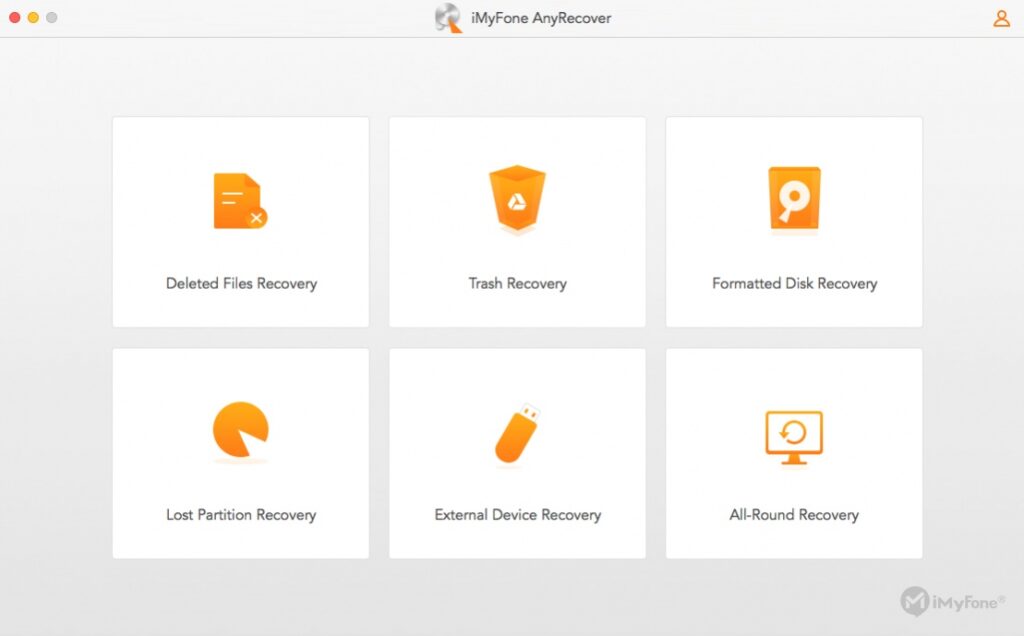
In the original MacAppCritic test, AnyRecover was pleasant and easy to follow. The opening screen made the Mac’s internal and external storage immediately visible. Dedicated Desktop and Trash choices were especially convenient because they avoided an unnecessarily broad scan when the original location was known.
The interface required little explanation: choose Data Recovery, select a location, scan and inspect the results. That remains the product’s strongest quality. It feels less intimidating than a utility that begins with file-system terminology or exposes many recovery algorithms.
The original article did not record a controlled recovery dataset, drive size or timed comparison. We therefore retain the usability observations but do not turn them into a current speed or success-rate claim. The latest version may behave differently on newer Apple-silicon Macs.
Quick and deep scanning
A quick scan relies on surviving file-system records. When those records remain intact, results may retain original filenames and folders. A deeper scan searches the storage for known file signatures. That can find content after formatting or directory damage, but recovered items may have generic names, lost folder structure or incomplete data.
AnyRecover lets a scan be paused or stopped when the required files have already appeared. Results can be searched and filtered by type or path, and a saved scan record can be imported later. Those details matter in daily use: a recovery session is often spent sorting thousands of candidates rather than waiting for the first result.
Scan time varies with capacity, interface speed, media condition and the number of signatures. A long scan is not proof of a better recovery. If a drive disconnects, clicks or becomes progressively slower, repeated full scans can make matters worse.
Previewing and judging results
The free download can scan and preview supported documents, photographs, audio and video. Previewing is the most useful pre-purchase test. Open several of the exact files you need and check their contents, not just names or thumbnails.
A correct filename can point to damaged or overwritten content. Conversely, AnyRecover notes that some unpreviewable formats may still recover successfully. Treat a working preview as positive evidence, not an absolute guarantee, and judge important large files individually.
Official pages are inconsistent about how many files can be saved free. Use the trial primarily to confirm compatibility, visibility and preview quality. Check the allowance shown in the installed build before assuming a free recovery quantity.
Recovering safely
Stop using the source as soon as data loss is discovered. Install AnyRecover elsewhere and write results to another physical disk. Merely choosing a different folder on the same source does not protect the lost blocks.
On a conventional hard drive, deleted content can survive until its blocks are reused. SSD recovery is much less predictable because TRIM permits the controller to clear deleted blocks. No application can reconstruct content that has been overwritten or erased by the controller.
After recovery, open representative documents, photographs and videos from the destination disk. Keep the original source untouched until the restored collection has been checked and backed up. File count alone is a poor measure of success when thousands of cached or partial files may be included.
Formatted, lost and unbootable volumes
AnyRecover can search formatted storage and attempt to locate lost partitions. Logical recovery is plausible when macOS still detects the device. A drive that never appears, repeatedly disconnects or makes abnormal sounds needs hardware diagnosis rather than another consumer scan.
The suite also documents bootable media for a Mac that will not start. This can avoid booting from and writing to the affected system volume. Creating that media requires another working computer and a blank USB drive. Users should prepare it on a separate machine, not on the failing source.
Photo, video and document repair is bundled with current plans. Repair may make an incomplete recovered file open, but it cannot recreate missing source data. Preserve the untouched recovered file and experiment only on a copy.
How it compares with alternatives
AnyRecover competes directly with iBoysoft Data Recovery, Cisdem Data Recovery, Disk Drill and similar Mac utilities. All follow the same basic sequence: detect the source, scan, filter, preview and recover elsewhere. None can guarantee success after overwriting, TRIM or physical failure.
AnyRecover’s advantage is its approachable location-based interface and broad cross-device bundle. Cisdem publishes much clearer current Mac and APFS specifications and documents drive-image work more prominently. iBoysoft offers more current macOS compatibility information. Disk Drill provides a wider collection of disk utilities and recovery-management features, but its interface and pricing may be excessive for a single simple job.
The best choice is the application that recognises the exact source and produces valid previews. Install trials on a healthy destination where practical; do not run several deep scans on an unstable drive merely to compare products.
Mac compatibility remains unclear
AnyRecover’s dedicated Mac page mentions Intel, T2, M1, M2 and M2 Ultra hardware, but its operating-system list stops at macOS 13 Ventura. The separate technical-reference page is older still: it lists Intel hardware and macOS 11 as the newest release.
That documentation does not establish support for newer Apple-silicon generations or macOS Sequoia, Tahoe and Golden Gate. A generic “Mac” badge is not enough. Before paying, confirm that the free build launches on the exact Mac, sees the intended source and produces usable previews.
Current pricing and value
The store sells a combined suite rather than the old Mac-only licence. Current promotional prices are $59.99 for one month, $79.99 for one year and $99.99 for a lifetime licence. Monthly and annual plans cover three mobile devices and two computers; lifetime covers five devices and three computers. Subscriptions renew automatically.
The bundle adds phone, chat and file-repair functions. That can be useful to a household with several recovery needs, but it makes AnyRecover poor value when only one Mac disk must be scanned. Compare the final checkout, renewal terms and refund conditions with a focused competitor.
Pros
- Clear location-based interface with Desktop and Trash shortcuts.
- Original hands-on use was approachable and easy to follow.
- Search, filters, previews and reusable scan records.
- Broad device, file-system and file-format coverage.
- Bootable recovery and damaged-file repair are included.
Cons
- Official Mac compatibility information is badly outdated.
- No recovery is possible after overwriting or effective SSD TRIM.
- The broad bundle may be excessive for one Mac recovery job.
- Drive-imaging guidance is less prominent than with some competitors.
- Monthly and annual subscriptions renew automatically.
Verdict
AnyRecover’s simple interface and targeted location choices made a genuinely positive impression in the original test. It remains a plausible first scan for logical data loss when macOS still detects the affected storage, especially for users who value guidance over technical controls.
The deciding weakness is not the feature list but the developer’s stale Mac specifications. Test the exact Mac and source with the free build, inspect real previews and compare the result with at least one better-documented alternative before buying. Recover to another disk and stop immediately when the symptoms suggest physical failure.
AnyRecover for Mac · Official user guide · Support FAQ · Technical specifications · Current licences
0 Comments