FoldersSynchronizer review
FoldersSynchronizer
FoldersSynchronizer is a focused utility for copying and synchronising files between folders, external disks and network volumes. Its interface looks more functional than polished, but behind that plain presentation is a detailed set of rules for one-way backups, two-way synchronisation, filters, scheduling and automatic operation.
The most important choice comes before the first file is copied: do you want a backup or a synchronisation? A backup normally sends changes in one direction and protects a separate copy. A synchronisation makes two locations agree and may deliberately copy deletions from one side to the other. FoldersSynchronizer can do both, but those jobs should not be treated as interchangeable.
Installation and background operation
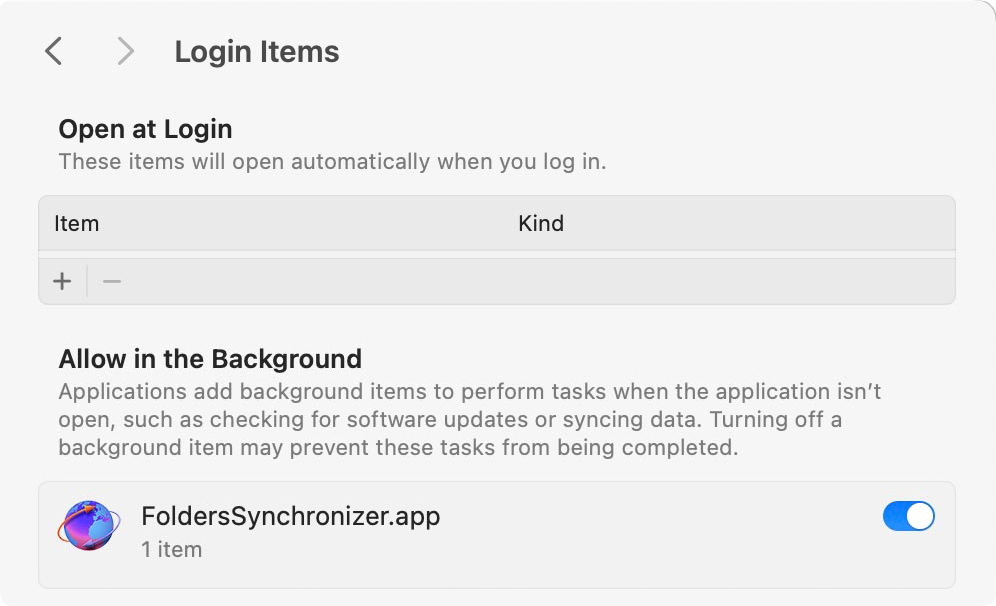
Installation is straightforward and does not require a restart. On recent versions of macOS, automatic jobs depend on permission for FoldersSynchronizer to run in the background. The application can take you to System Settings, where it must be allowed under General and Login Items. This is a normal macOS security step rather than an additional component.
Once authorised, a task is built around a source and a destination. You select the operation, decide how newer, older and missing files should be handled, and optionally add exclusions. The preview deserves attention: it shows the proposed copy and deletion actions before they are committed.
Exact Sync, Exact Backup and ordinary copying
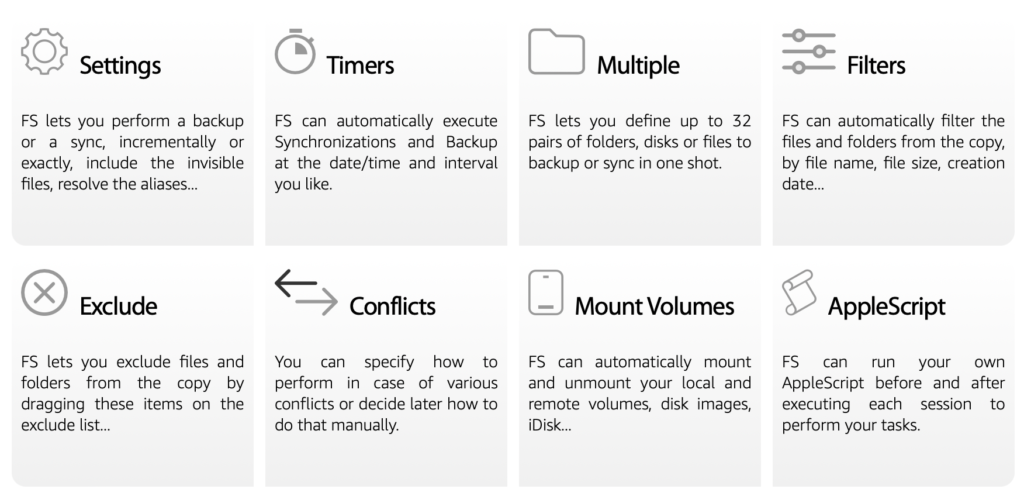
FoldersSynchronizer provides several operation types. Exact Sync is intended to make two locations identical according to the selected direction and rules. That can include removing destination items which no longer exist at the source. Exact Backup uses a one-way model suited to maintaining a destination copy. Other options allow selected additions and updates without always enforcing an exact mirror.
The names are helpful once understood, but “exact” carries consequences. If a source file was deleted accidentally and the task mirrors deletions, the destination can lose it too. Before automating an exact operation, run the preview with a small test folder and verify the result. For irreplaceable material, keep another versioned or offline backup as well.
Interface and task options
The interface places function ahead of appearance. In our earlier test it was easy to identify the paired locations and reach the main options, although the number of rules can initially make the application seem more technical than a one-click backup tool. Users who want precise control may appreciate that directness; those expecting a modern guided workflow may need more time.
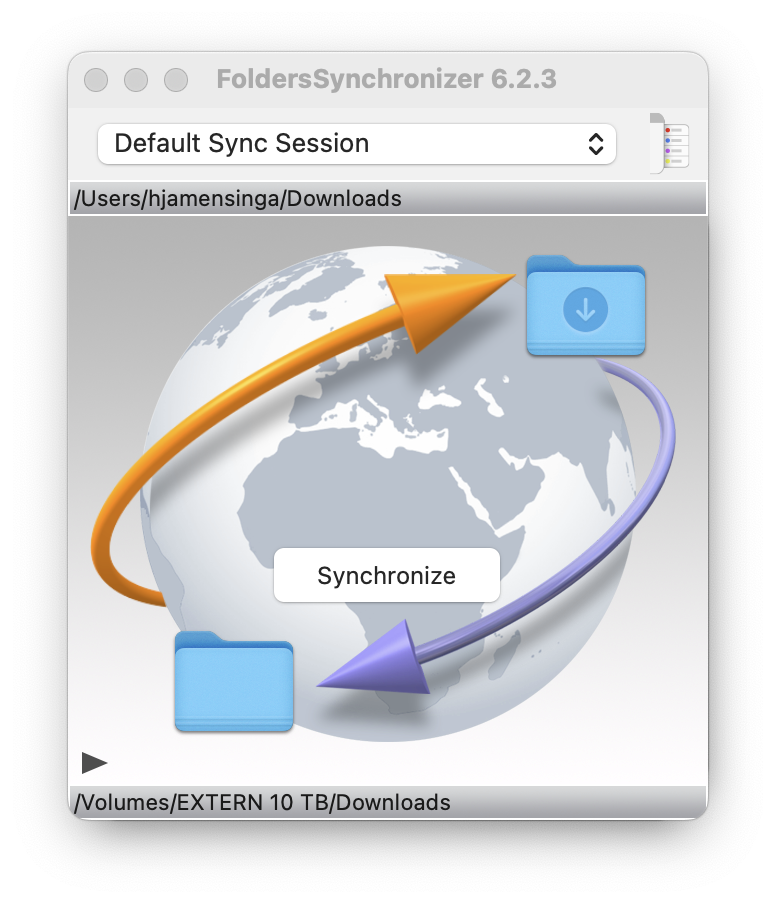
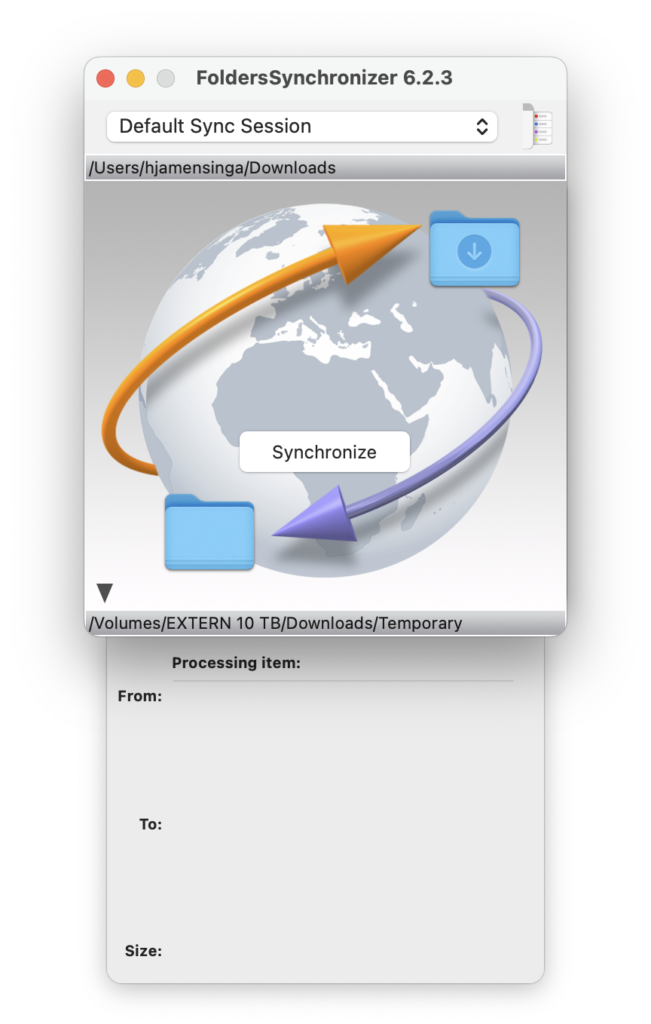
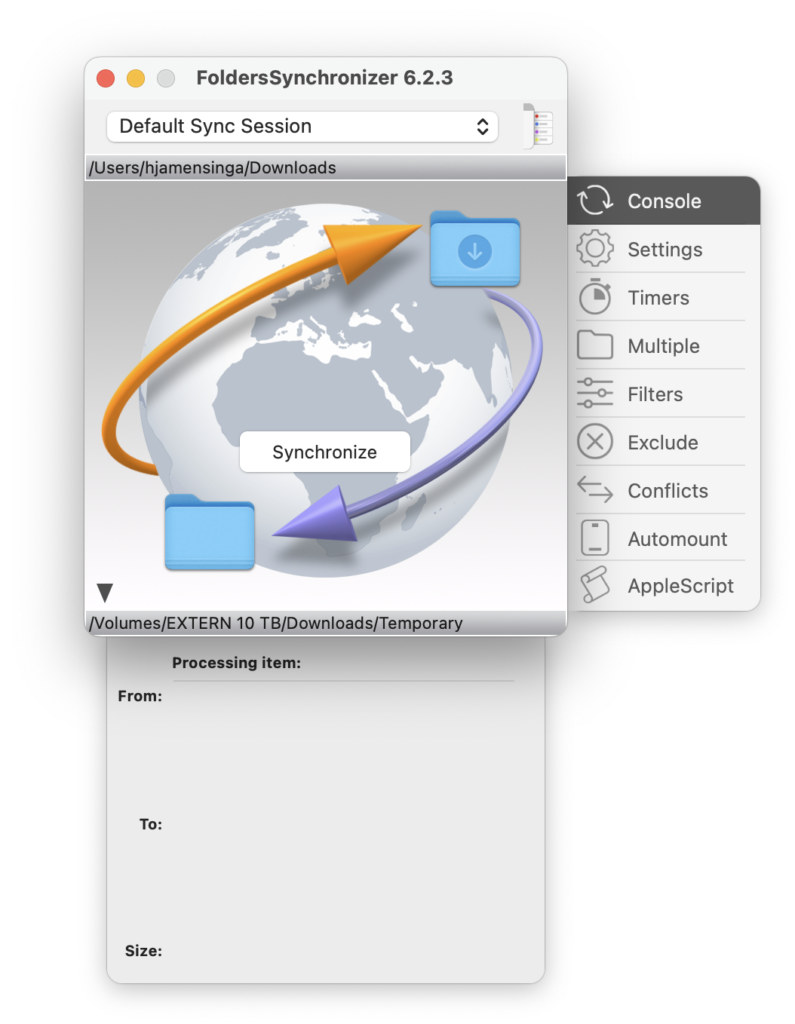
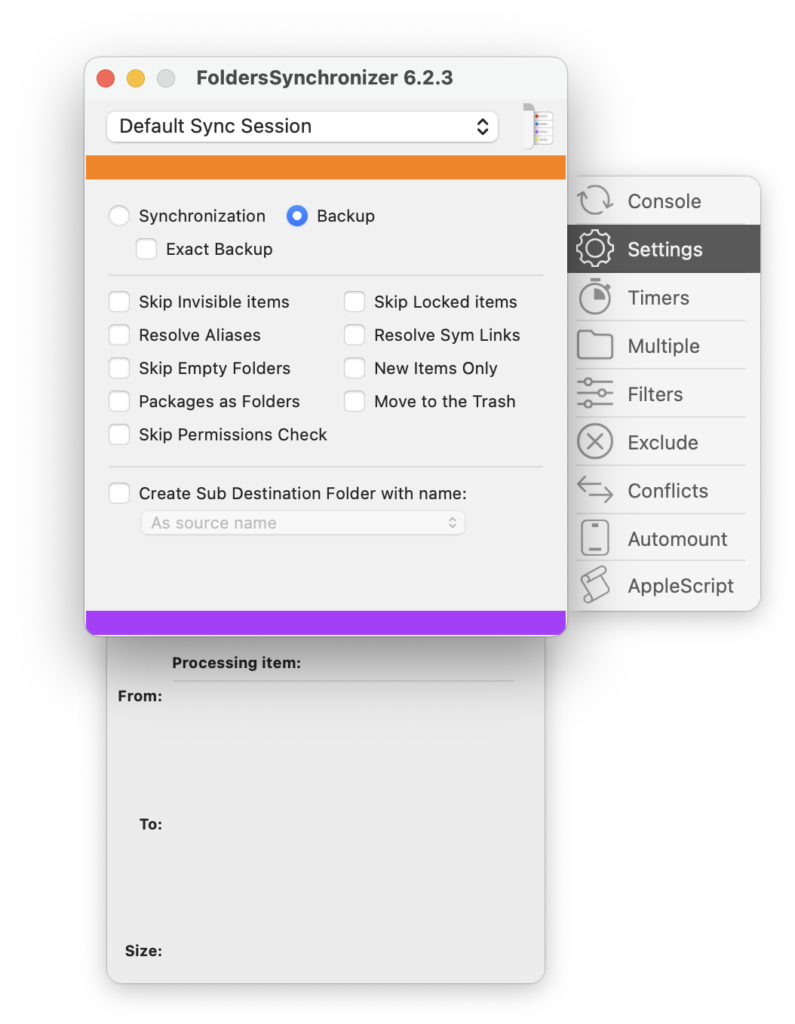
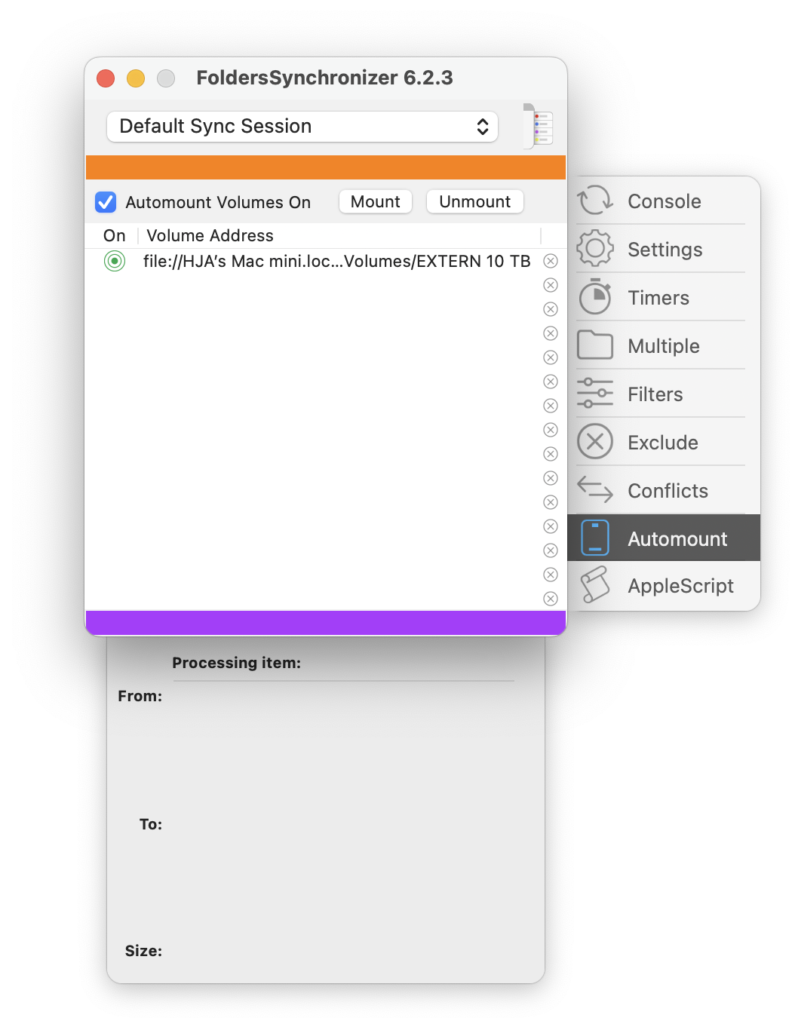
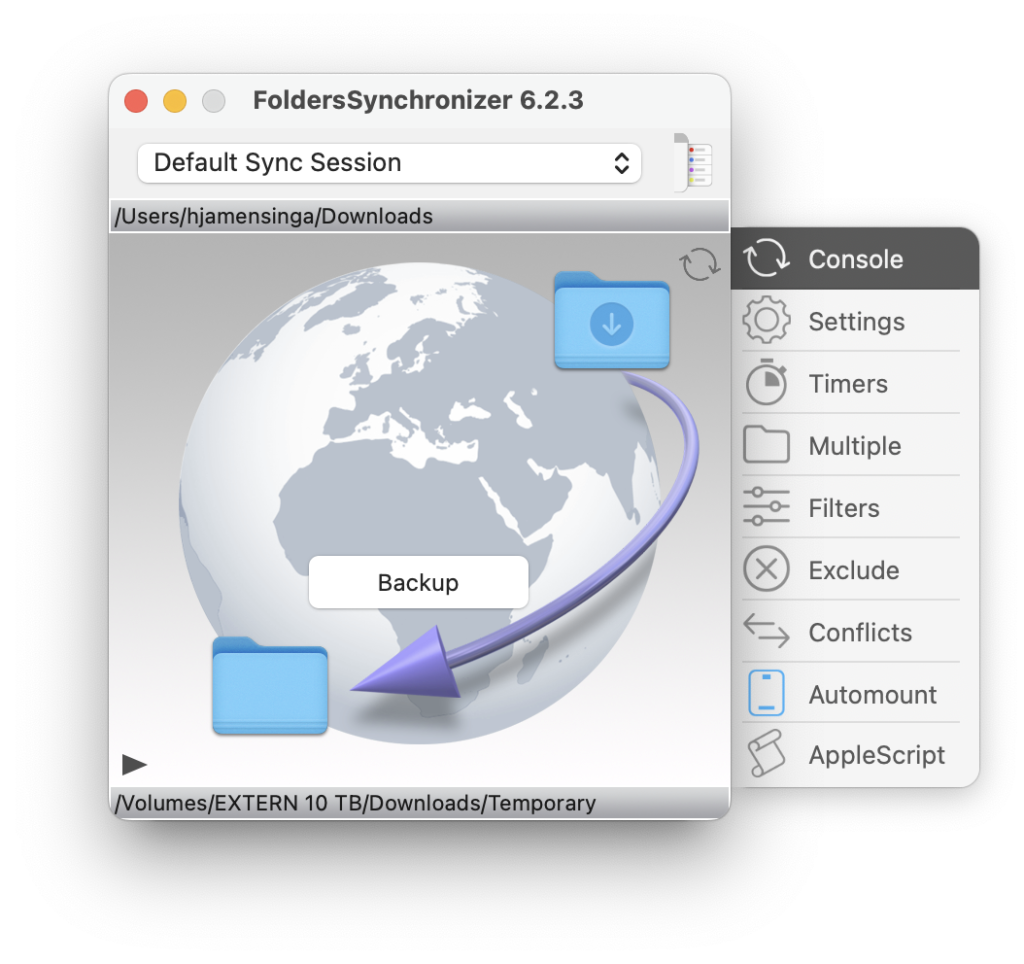
The interface and settings shown above come from the version used in our original practical review. Labels or placement may differ in 6.2.5.
Filters, conflicts and logs
Filters can include or exclude files using properties such as names, extensions and dates. Hidden files and package contents need deliberate treatment because an apparently simple folder may contain data that applications manage as one unit. A good filter should be tested with the preview rather than assumed to work from its description alone.
When the same file changed at both locations, a two-way task needs a conflict rule. Automatically choosing the newest timestamp is convenient but can be unsafe when clocks differ or an older document contains the wanted edit. Keeping both versions or pausing for review is slower and usually safer until the workflow is proven.
Logs provide a record of copied, skipped and deleted items. They help diagnose a failed task, but they are also useful after a successful one: a quick review can reveal unexpected exclusions or a large deletion set before it becomes part of the routine.
Scheduling and unattended jobs
Tasks can run on a schedule or in response to supported conditions. This turns FoldersSynchronizer into a practical local automation tool, particularly for a disk that remains connected or a network share that is consistently available. Notifications show when a run finishes, while background access lets the application operate without keeping its main window open.
Automation does not remove the need for maintenance. External disks can be disconnected, network credentials expire and a destination can fill up. Check the logs periodically and restore a sample file. A schedule that has silently failed for weeks is not a backup strategy.
Performance in our earlier test
We previously copied a folder of roughly 25 GB and found FoldersSynchronizer stable, although it completed the particular test more slowly than Carbon Copy Cloner and closer to ChronoSync or a Finder copy. That was an observation from one setup, not a controlled benchmark of version 6.2.5. Drive speed, connection type, file count, verification settings and background load can change the result considerably.
Boot disks and modern macOS
Softobe documents operations involving boot disks and local or remote volumes. On modern Macs, however, Apple’s signed and sealed system volume has changed the meaning of a bootable clone. A copy of user data remains valuable, but users should not assume that every hardware and macOS combination can start immediately from a duplicated system disk in the way older Intel Macs often could.
If bootability is essential, test the destination on the exact Mac and macOS version involved. A complete recovery plan should also include macOS Recovery, installers and a verified route for restoring user data.
Pricing and licence
FoldersSynchronizer is sold as a Mac utility rather than a storage subscription. Prices and licence options can change, so consult Softobe’s store before buying. Compare the licence scope as well as the headline amount, particularly if several Macs or commercial use are involved.
Pros
- Flexible one-way backup and two-way synchronisation operations.
- Preview, filters and logs provide control over file actions.
- Scheduling and background operation suit recurring local jobs.
- Works with local disks, folders and accessible network volumes.
- Universal support for Intel and Apple-silicon Macs.
- Stable performance in our earlier practical use.
Cons
- The functional interface feels less modern than several competitors.
- Exact synchronisation can propagate accidental deletions.
- Advanced rules require careful testing before automation.
- Our earlier copy test did not make it the fastest option, although results depend on the setup.
- Boot-disk claims need realistic interpretation on current macOS releases.
Verdict
FoldersSynchronizer 6 remains a capable choice for Mac users who want detailed local control without tying their files to a particular cloud service. Its strongest qualities are the range of operations, clear previews and dependable automation. The trade-off is an interface and terminology that ask more of the user than a simple consumer backup app.
Use Exact Backup for a deliberate one-way safety copy, reserve two-way or exact synchronisation for folders that truly need it, and keep a separate versioned backup of important data. With that discipline, FoldersSynchronizer can be a useful and economical part of a broader Mac backup plan.
0 Comments