iToolab FixGo review
What FixGo does
iToolab FixGo is a Mac and Windows utility for repairing software problems on an iPhone, iPad, iPod touch or Apple TV. It targets boot loops, frozen screens, failed updates, recovery-mode loops, black or white screens and common restore errors. It does not repair hardware and it does not recover deleted personal files.
iToolab currently advertises compatibility through iOS and iPadOS 27. Its detailed Mac specification still stops at macOS 14 Sonoma, despite the download page saying macOS 10.10 or later. Users of Sequoia, Tahoe or Golden Gate should therefore use the free download to confirm that FixGo opens and recognises the device before buying.
Installation and preparation
Installation is conventional: download the Mac installer from iToolab, place the application on the Mac and open it. FixGo itself requires little disk space, but that figure is misleading for a real repair because the required Apple firmware package is much larger. Keep several gigabytes free and use a stable internet connection.
Connect the device directly to the Mac with a reliable cable. Avoid an unpowered hub. If iOS remains responsive, unlock it and approve the Trust prompt. A Mac can also ask whether the USB accessory may connect. These permissions are part of Apple’s device security; FixGo cannot proceed normally until the Mac can communicate with the device.
Before repairing anything, make an encrypted Finder backup or an iCloud backup whenever the device is still accessible. An encrypted local backup preserves more account and health information than an unencrypted one. Also charge the device and prevent the Mac from sleeping during the firmware installation.
Our original hands-on experience
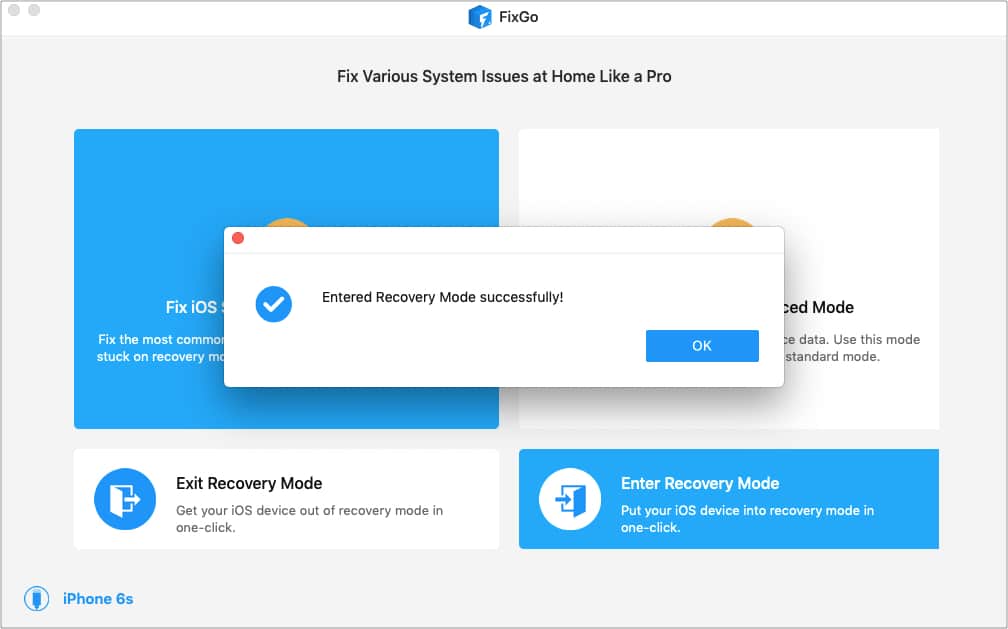
The version used for the original MacAppCritic review was pleasantly direct. The home screen did not bury the task under preferences: connect the device, select a mode and follow the firmware instructions. Recovery-mode controls were easy to find, and the sequence made sense without technical knowledge.
Our original process took roughly 10 to 15 minutes. That was a useful indication of the uncomplicated workflow, not a benchmark for the current release. Today the firmware download can dominate the total time, and a difficult device may first need Recovery Mode or DFU Mode.
The strongest part of the experience was guidance. FixGo reduced a potentially intimidating firmware procedure to a short series of choices. The weakness is that simplicity can make the operation appear safer or more certain than it is. A repair application is still reinstalling system software on a device that may already be unstable.
Standard Mode in practice
Standard Mode is the correct first attempt for a device that is frozen, stuck at the Apple logo or unable to complete an update. FixGo identifies the model, obtains compatible firmware and reinstalls system components. iToolab describes this mode as repairing without data loss.
That promise should be read as the intended outcome, not a guarantee. Firmware repair can fail because of a damaged cable, unstable storage, insufficient power or a hardware fault. A backup remains essential. If Standard Mode succeeds, the benefit over a full restore is that the user should return to the existing apps and data rather than configure the device from scratch.
Advanced Mode and data loss
Advanced Mode is the fallback when Standard Mode cannot resolve the problem or when the passcode is unavailable. It performs a deeper reset and completely erases the device. This is not a small escalation: after the repair, information can only be restored from an existing Finder or iCloud backup.
Do not use Advanced Mode merely because it sounds more powerful. If irreplaceable data exists only on the device, stop before erasing it. FixGo cannot extract that data first, and an Apple Store or repair specialist may still conclude that recovery is impossible when storage or logic-board hardware has failed.
Recovery Mode and DFU Mode
Entering and exiting Recovery Mode are the two genuinely free FixGo functions. They are useful when the button sequence is inconvenient or when a device remains on the recovery screen after an interrupted update. In our earlier use, these controls were the clearest part of the interface.
If normal detection fails, FixGo supplies device-specific instructions for Recovery Mode and then DFU Mode. Recovery Mode loads enough Apple recovery software to update or restore the device. DFU operates at a lower level and is mainly a last resort. Neither mode repairs a bad battery, damaged port, failing storage or liquid damage.
Firmware downloads and repair time
Both repair modes require an Apple firmware package. FixGo can download the correct file or import one already stored on the Mac. Select the download folder carefully: the installer’s stated 200 MB free-space requirement does not include the multi-gigabyte firmware image and temporary working space.
Repair time is therefore split into detection, firmware download, verification and installation. A fast original 10–15 minute experience is possible when the firmware is ready and the connection behaves, but it should not be promised. iToolab’s own support page treats a progress bar stuck near the beginning for more than half an hour as a troubleshooting case.
The product advertises downgrading without jailbreak. In practice, the choices are constrained by the firmware Apple still signs for that model. “Supported versions” does not mean every historical iOS release remains installable. Inspect the versions actually offered for the connected device before paying for a downgrade.
How it compares with Apple’s tools
Finder on a modern Mac can already update or restore an iPhone or iPad in Recovery Mode at no extra cost. That should be the first comparison. Apple’s route is free, documented and sufficient for many failed updates. It can, however, lead to a full restore, and its messages are less guided for users unfamiliar with Recovery or DFU Mode.
FixGo’s value is not unique access to Apple firmware. It is the clearer guided workflow, one-click recovery-mode tools and a Standard Mode intended to preserve data. Similar commercial utilities such as Tenorshare ReiBoot and iMyFone Fixppo use much the same two-tier idea. The important differences are device recognition, current Mac compatibility, final checkout price and whether the trial proves enough before payment—not the advertised number of problems.
What the “200+ problems” claim means
iToolab lists more than 200 iOS, iPadOS and tvOS problems. Many are different symptoms of the same underlying update, boot or restore failure. The count is marketing shorthand, not 200 separate diagnostic engines.
The useful dividing line is software versus hardware. FixGo may help after a failed update or corrupted system installation. It cannot replace a display, repair liquid damage, restore a worn battery or rescue a failing storage chip. Repeated disconnects, excessive heat, swelling or a device that is never detected are reasons to stop.
Free trial and licensing
The trial can enter and exit Recovery Mode and lets users check whether the Mac application recognises the device. Completing Standard or Advanced Mode requires a paid licence.
Current Mac pricing is $35.95 for one month, $39.95 for one year and $59.95 for a lifetime licence, excluding tax and subject to promotions. Each consumer plan covers five mobile devices and one Mac. Monthly and annual plans renew automatically. Windows and Mac licences are not interchangeable.
The lifetime price is close to the annual price, but a free Finder restore may solve the problem first. Compare the final checkout, not the crossed-out reference price, and read the refund conditions. A refund policy should not be treated as a success guarantee.
Pros
- Clear, guided firmware-repair workflow.
- Original hands-on use was direct and uncomplicated.
- Standard Mode is designed to preserve existing data.
- Entering and exiting Recovery Mode is free.
- Supports iPhone, iPad, iPod touch and Apple TV.
Cons
- Advanced Mode completely erases the device.
- No hardware repair or deleted-data recovery.
- Official detailed Mac compatibility stops at Sonoma.
- Firmware downloads require much more space than the app itself.
- Subscriptions renew automatically.
- Apple’s free Finder recovery should be tried first.
Verdict
FixGo is most useful for a non-technical owner whose iPhone or iPad is trapped in a software failure and who wants more guidance than Finder provides. The original interface was one of the easiest in this category, and the distinction between Standard and Advanced Mode is clearer than a single generic repair button.
Its value depends on the situation. First make a backup, check the cable and try Apple’s free update or recovery route. Then use FixGo’s free functions to confirm device recognition. Standard Mode is the sensible paid attempt when preserving data matters; Advanced Mode is only appropriate when erasure is acceptable. If the device disconnects repeatedly or shows physical warning signs, software repair is the wrong next step.
iToolab FixGo · Official technical FAQ · FixGo guide · Current Mac licences
0 Comments